Virtual Student Information
Event Information
Public Classes
If you are attending a public training, your ticketing was handled through either Humanitix or Eventbrite depending on your region. The event listing contains information about class timing.
Private Classes
If you are attending a class organized through your employer, the point-of-contact at your workplace will have the most up to date information for your specific offering.
What To Expect
For virtual SpecterOps trainings, you need to have a laptop or desktop computer running a modern operating system and modern browser (Chrome/Firefox/Edge). See the lab access guide for more information about our virtual lab environment.
Slack
Shortly before class, you will recieve an invite to the Bloodhound Gang Slack in the email inbox of the email you provided at ticket purchase, or your company provided to us at booking. Accept the invite, and you will be added to your class channels.
Important
You cannot participate in the course to the full extent without Slack access. Please ensure you accept the invite prior to the class start date.
Zoom
You will be provided a Zoom link from our team prior to the training. If you wish to participate in discussion, you will need a microphone of some kind compatible with Zoom. Cameras are encouraged but not required.
This section covers the technical requirements that will need to be met for a successful SpecterOps remote training course. Please review this section in detail, verify that you are able to meet the requirements listed, and perform the initial testing steps mentioned as soon as possible. This will help us to identify any areas where you may have trouble meeting our requirements and allow us to begin discussing and testing solutions in advance of the training session. SpecterOps utilizes the Zoom video conferencing platform to deliver remote training courses. Ahead of the training event, we will want to verify that training attendees will be able to visit our site at https://specterops.zoom.us and download the Zoom client. NOTE: These tests should be performed using a device, user profile, and network access similar to those that will be used by the attendees for your SpecterOps training event.
Step 1 - Visit Zoom
Visit Zoom.us and verify that you can access the page.
If you were able to successfully visit the site, please move on to Step 2.
Important
If you were not able to reach the page, please contact your network security administrator and request that https://specterops.zoom.us be allow-listed for access. You will also need to reach https://zoom.us/test later in the process. If separate requests are necessary, please request that both be allow-listed.
Step 2 - Download and Run Zoom
Please attempt to download and run the Zoom client using the “Download Client” link at the bottom of the page, or at this link.
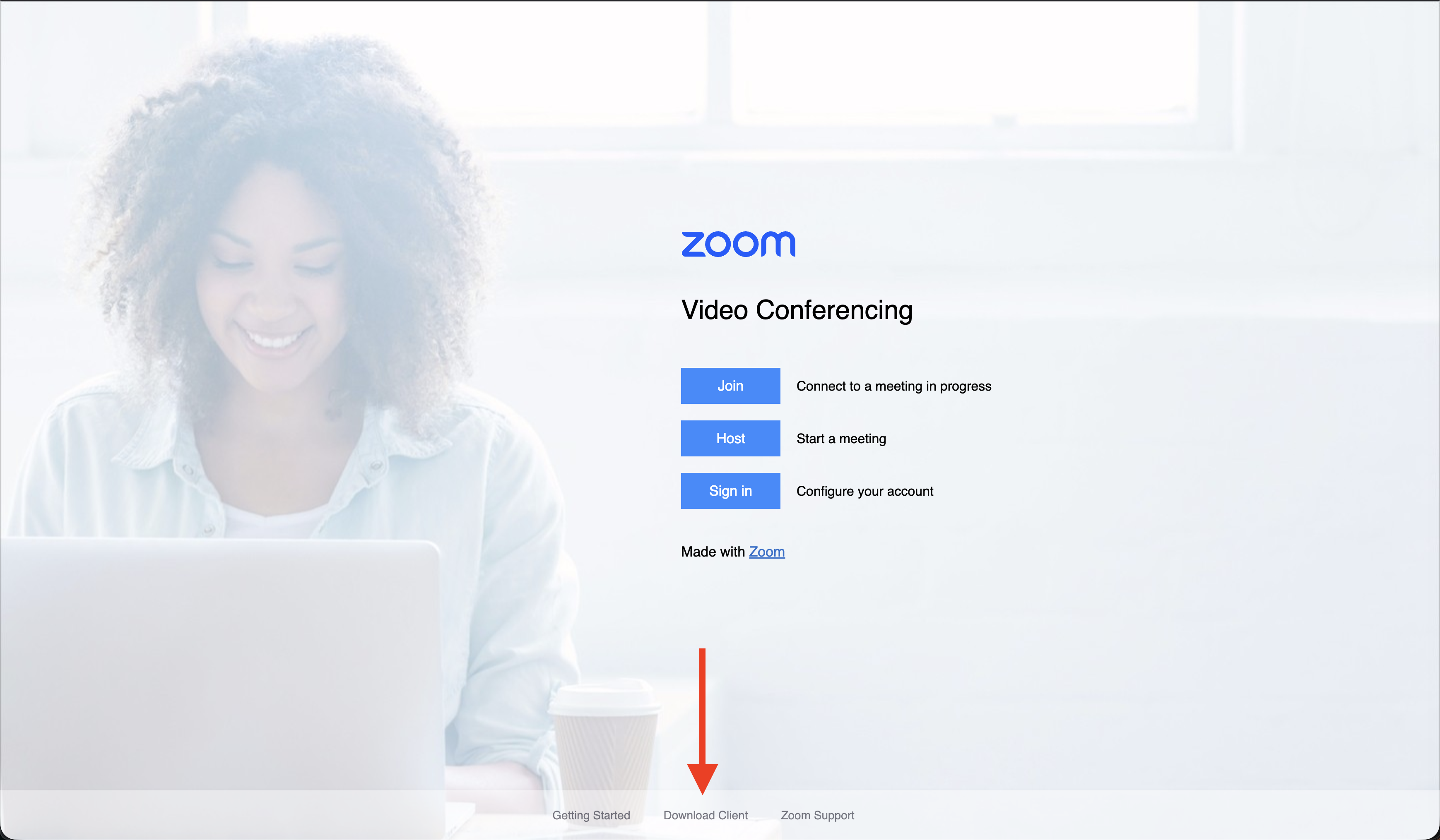
If you were able to download and run the Zoom client, please move on to Step 3.
Important
If you were not able to download and run the client, please contact your network security administrator and request approval for the app.
Step 3 - Join a Zoom Test Meeting
Try joining a test meeting by going to the Zoom Test site and clicking the blue “Join” button:
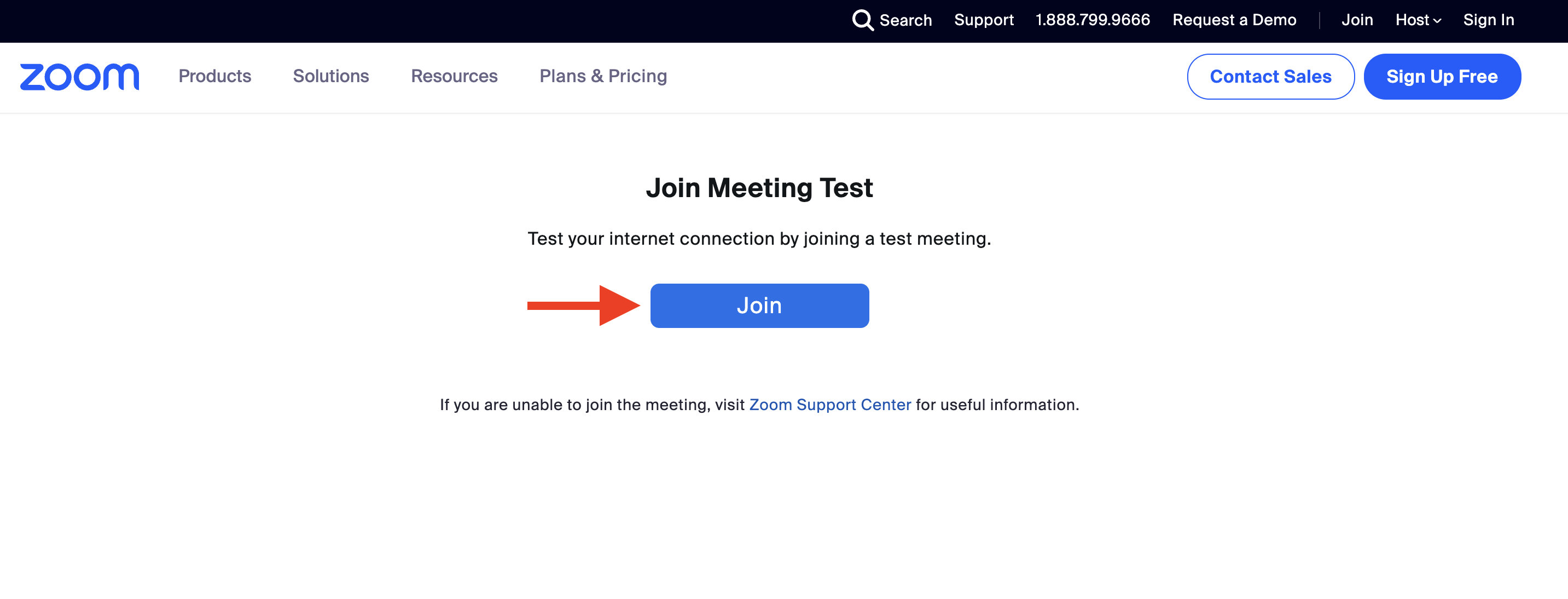
You will be directed to a prompt asking to open Zoom:
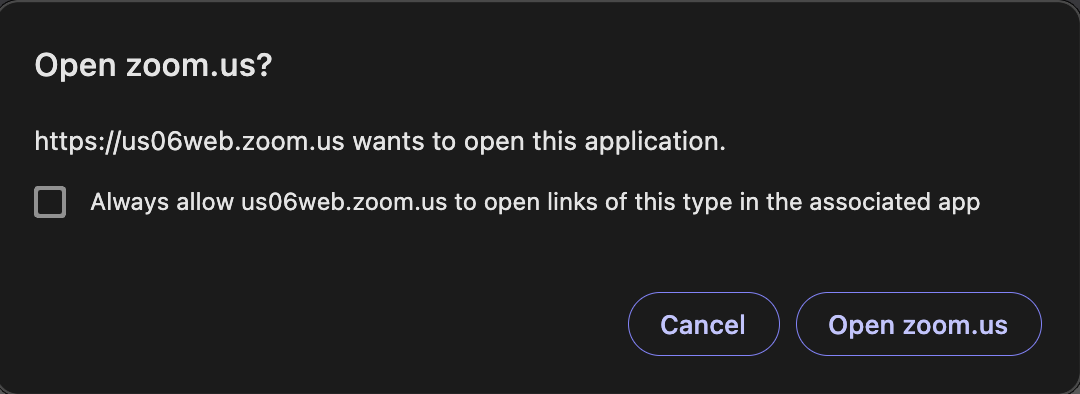
If the application successfully launched, please move on to Step 4.
Important
If you were not able to launch the app, please contact your network security administrator to ensure no controls are in place that would interfere with the proper function of Zoom.
Step 4 - Test Your Input and Output with Zoom
Once you have joined the test meeting, Zoom will perform a check to ensure your speaker, microphone, and webcam are in working order. Please follow the on-screen instructions to complete the test.
If you are successful, you are ready for class!
Important
If you were not able to complete the test, please contact your network security administrator to ensure no controls are in place that would interfere with the proper function of Zoom.